Signing in
Access is by invitation only. There is no public sign-up, so only vetted 21CC members and Polintel staff can reach the platform.
First sign-in
- Look for the invitation email from Polintel. It arrives when an administrator adds you to the platform.
- Open the link in the email and choose a password of at least 8 characters.
- Sign in at the platform address with your email and the password you chose.
Forgot your password?
- On the sign-in screen, type your email address in the Email field.
- Click Forgot password? under the Sign In button. A message confirms the reset email was sent.
- Open the link in the email. On the Choose a new password screen enter a new password (8+ characters) and click Set Password & Sign In.
Finding your way around
Everything lives under one row of tabs beneath the header.
| Tab | What it's for |
|---|---|
| Member Intelligence | Your dashboard, the 60-member CBC roster, committee assignments, key legislation and AI briefings |
| Community Impact | District-level impact data for CBC districts |
| Executive Orders | Federal Register executive-order tracker |
| Floor This Week | House and Senate floor schedule |
| 21CC Members | Directory of member companies with search and industry groups |
| Elections 2026 | CBC member election tracker |
| News | Curated CBC and policy news |
Light and dark mode
The platform opens in light mode. Click Dark (or Light) in the header to switch; your choice is remembered on that device.
Live data
The Live · 30 min refresh badge means legislative data is pulled from Congress.gov, FEC Open Data and the Federal Register and refreshed every thirty minutes. AI briefings and news are generated once and then cached, so repeat views load instantly.
Training
Click Training in the header at any time to reopen this guide.
Finding your way around
Administrators see every member tab plus three management tabs. The management tabs are enforced on the server — a member cannot reach them by guessing a link.
| Tab | What it's for | Who sees it |
|---|---|---|
| Member Intelligence | Dashboard (with a company-selector preview for admins), CBC roster, legislation, AI briefings | Everyone |
| Community Impact · Executive Orders · Floor This Week · Elections 2026 · News | Legislative intelligence | Everyone |
| 21CC Members | Company directory. Admins also see Polintel Intelligence targeting notes, key contacts and staff notes on each company | Everyone (admin-only sections inside) |
| SMS Admin | Compose and send text alerts, manage the enrolled roster and events | Administrators |
| Profiles | One-pager editor for member companies | Administrators |
| Accounts | Invite members, see who has signed up, engagement metrics | Administrators |
What members can and cannot see
The platform is shared by competing companies, so some information is held back from member-role users:
| Information | Members | Administrators |
|---|---|---|
| CBC member profiles, legislation, AI briefings, news, elections | Yes | Yes |
| Company directory and one-pager: tagline, priorities, key issues, ask of CBC, engagement history, bills to watch | Yes | Yes |
| One-pager: key company contacts and CBCI staff notes | No — never sent to their browser | Yes |
| Polintel Intelligence — top CBC targets and strategy note for each company | No | Yes |
| Member roster, sign-in activity, SMS enrollments, sending alerts | No | Yes |
Your dashboard
When you sign in, the Member Intelligence tab opens on a dashboard tailored to your company: the CBC members most aligned with your priorities and the legislation to watch.
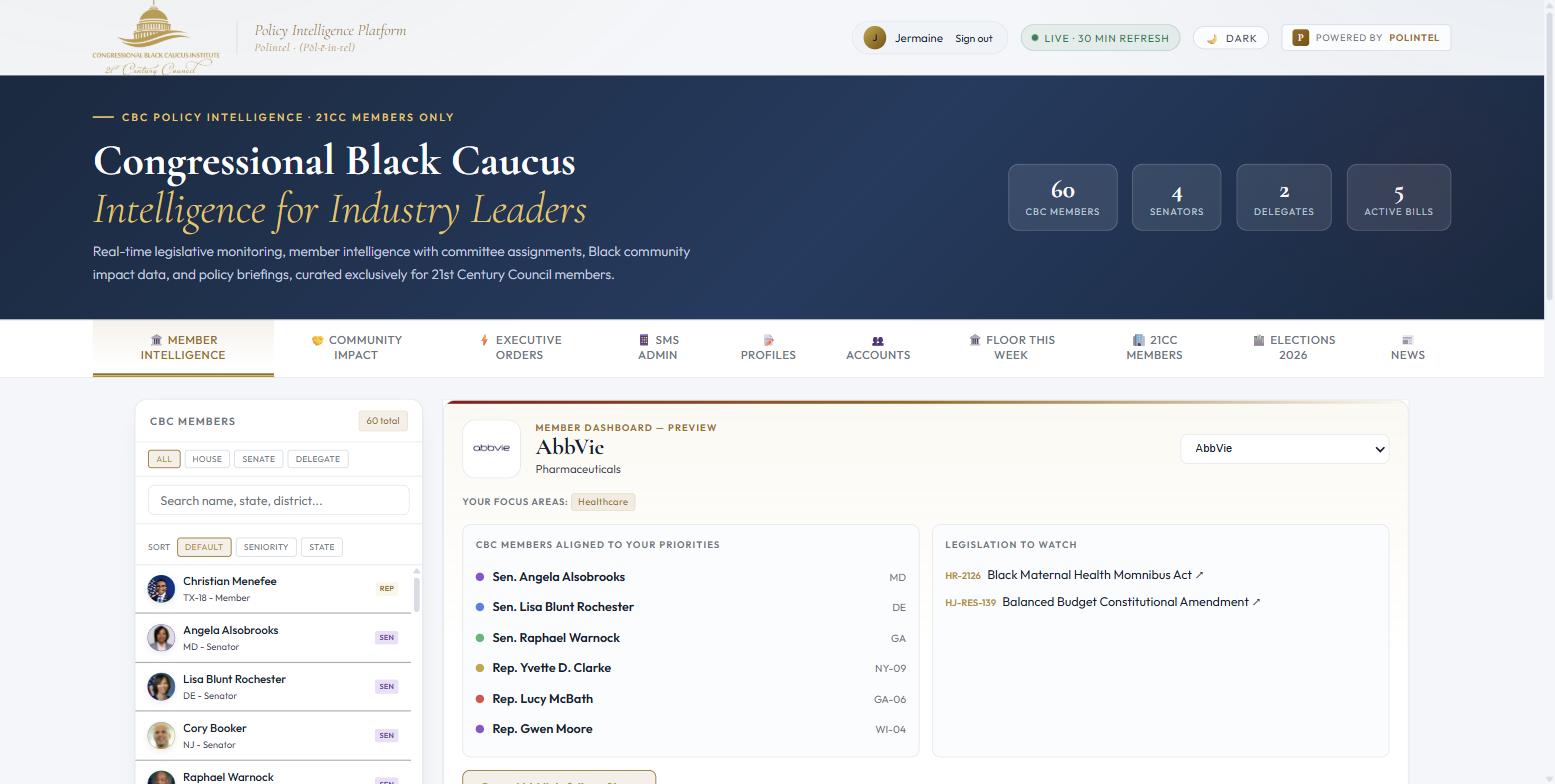
Below the dashboard, the left column carries the full CBC roster, the CBC Priority Index, upcoming events and the SMS alerts card. Click Open [company]'s full profile to jump to your company in the 21CC Members directory.
CBC member intelligence
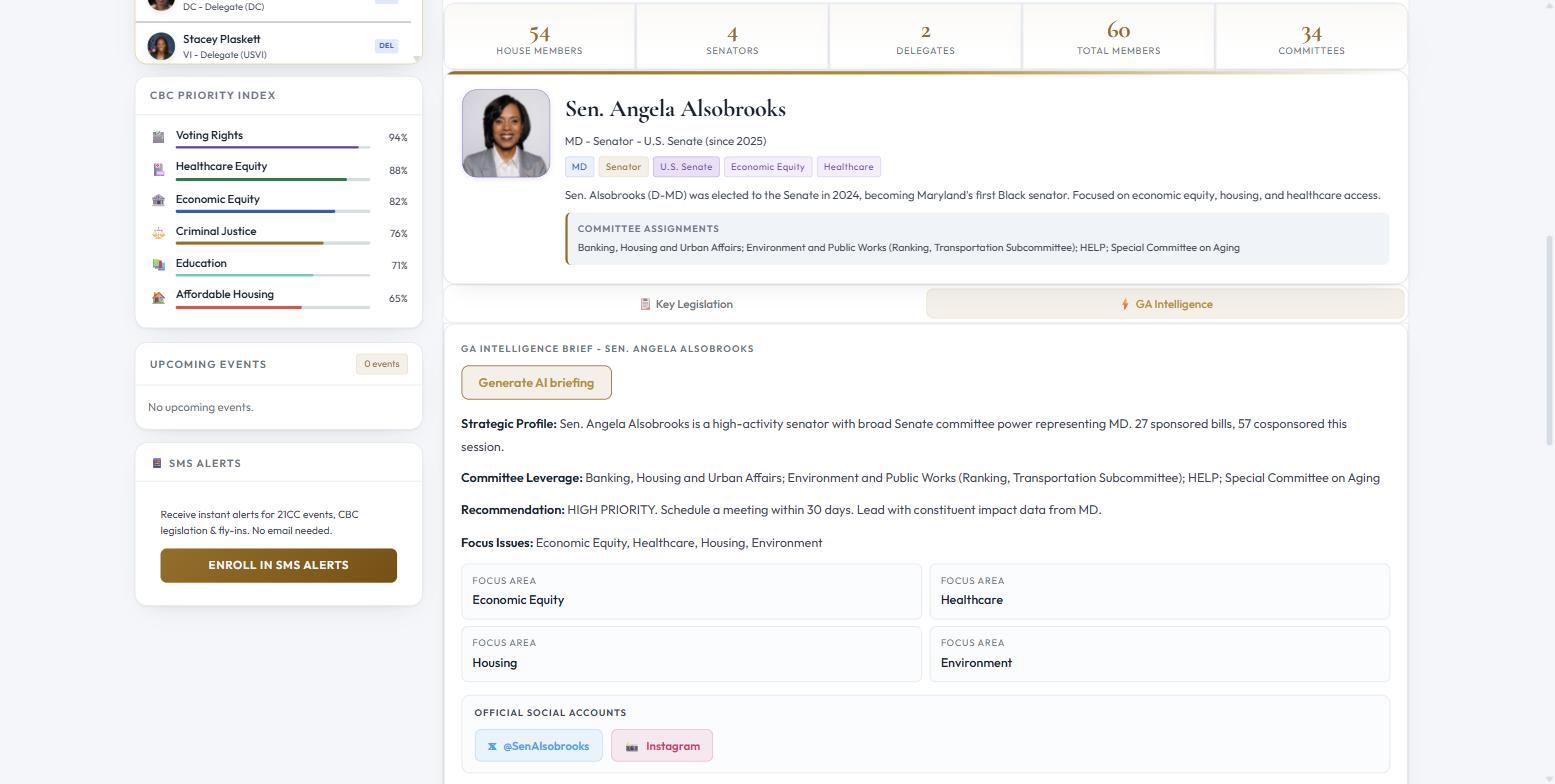
Every one of the 60 CBC members has a profile with committee assignments, key legislation and a government-affairs intelligence brief.
- In the CBC Members list on the left, filter by House, Senate or Delegate, or type a name, state or district in the search box.
- Sort by Default, Seniority or State.
- Click a member. Their profile opens on the right with bio, committee assignments and tags.
- Use the Key Legislation tab to see their sponsored bills (filter by issue area), or GA Intelligence for the strategic profile, committee leverage, recommendation and focus issues.
- Click Generate AI briefing for a fresh written briefing on that member.
21CC company directory
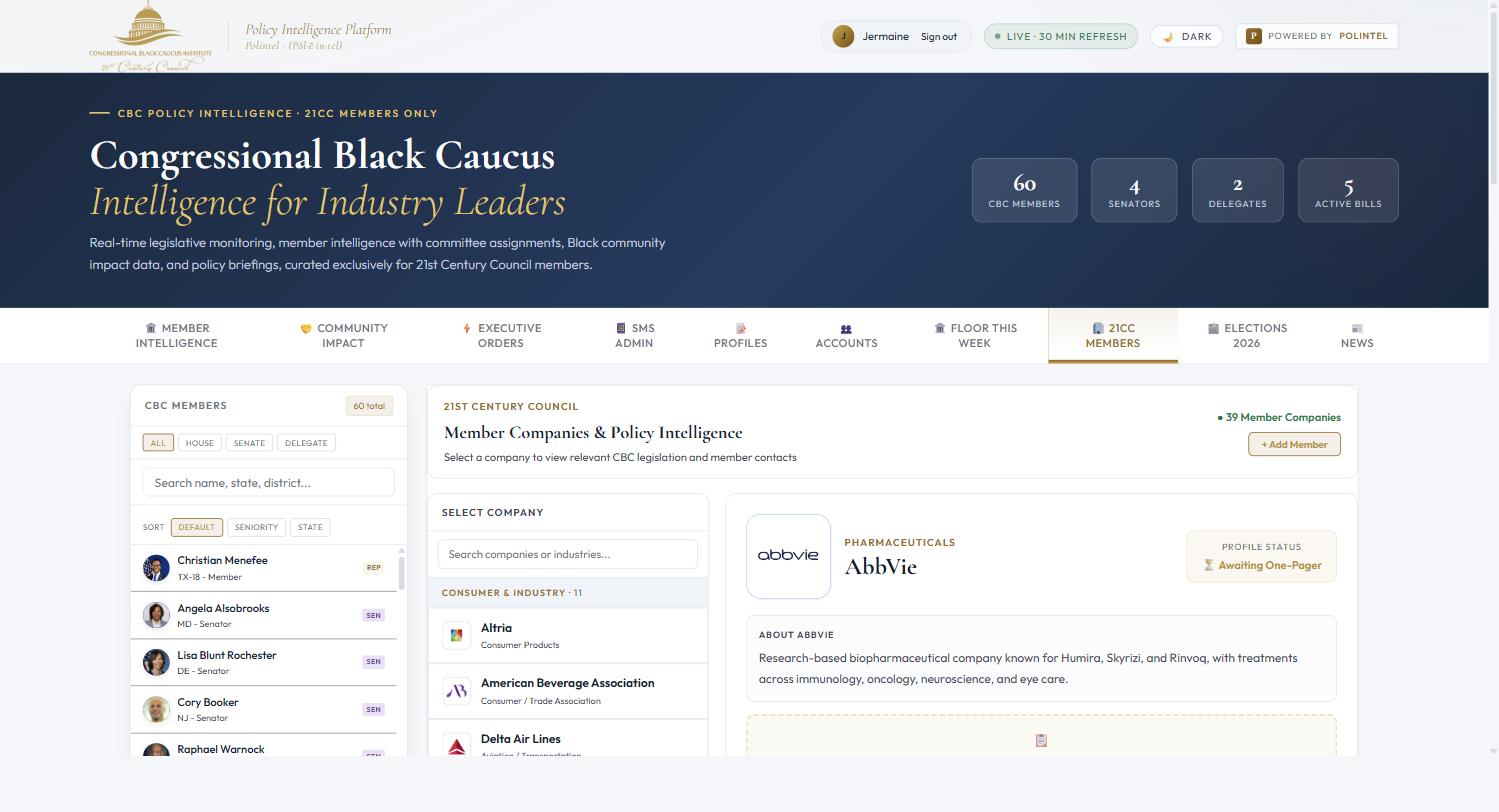
The 21CC Members tab lists every member company, grouped by industry, with a profile page for each.
- Open 21CC Members. Companies are grouped under industry headings such as Healthcare & Pharma, Energy & Utilities, Financial Services, Technology & Media and Consumer & Industry.
- Type in Search companies or industries to filter by company name, sector or industry group — for example Toyota, or tech.
- Click a company to open its profile: sector, description and — once submitted — its one-pager with government-affairs priorities, key issues, ask of CBC, engagement history and bills to watch.
SMS alerts
Receive text alerts for 21CC events, CBC legislative action and fly-in notices. Enrollment is voluntary and requires your express consent.
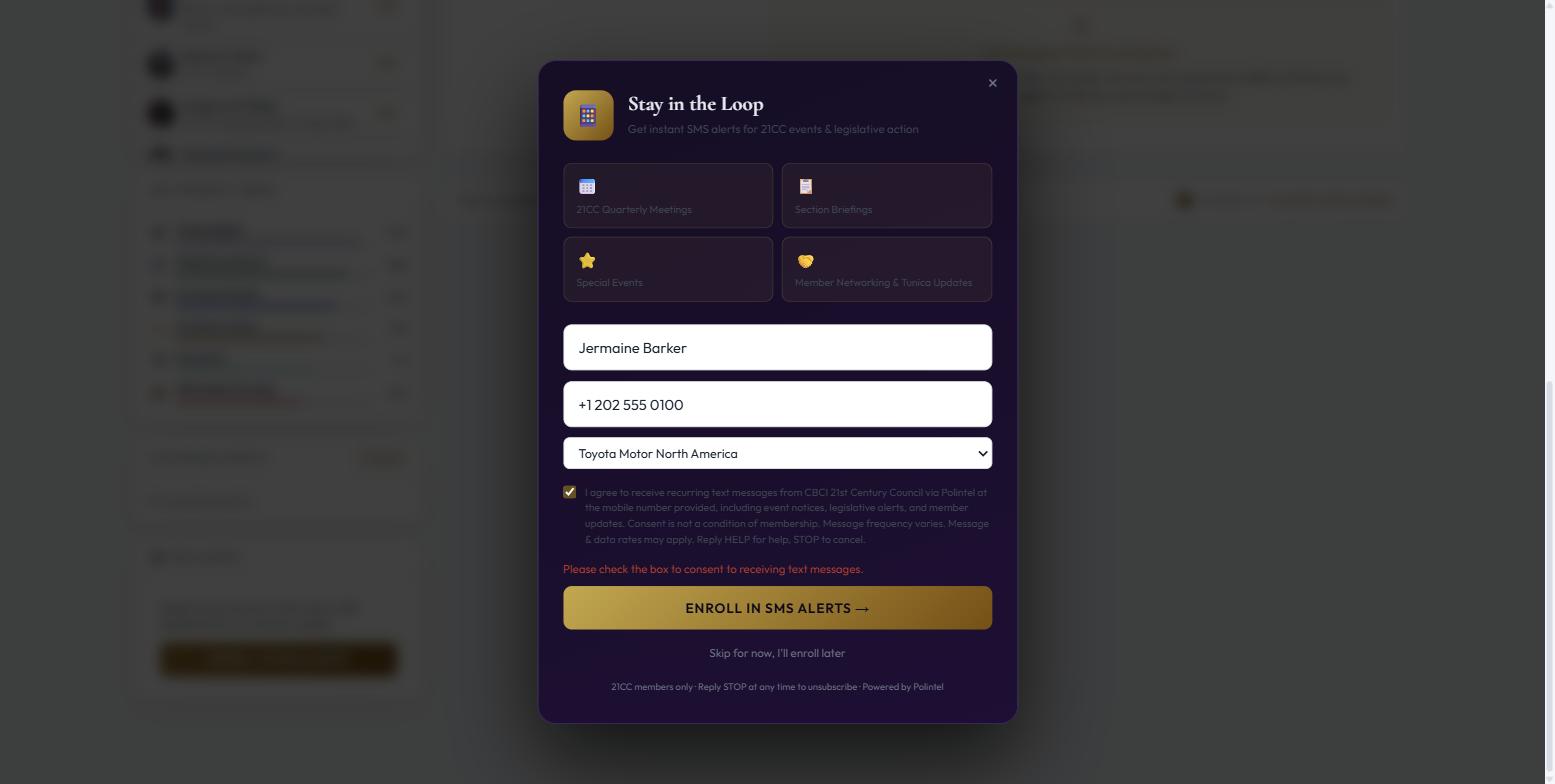
- On your first sign-in the Stay in the Loop window opens automatically. You can also open it any time from the Enroll in SMS Alerts button in the left column.
- Enter your full name and mobile number (with country code, e.g. +1 202 555 0100), and select your 21CC member organization.
- Read the consent statement and check the box. The platform will not enroll you until you do, and it records the exact statement you agreed to, with a timestamp.
- Click Enroll in SMS Alerts. A confirmation shows the number that will receive alerts.
Managing alerts by text
Every alert ends with "Reply STOP to opt out." Standard message and data rates may apply; message frequency varies.
Member accounts
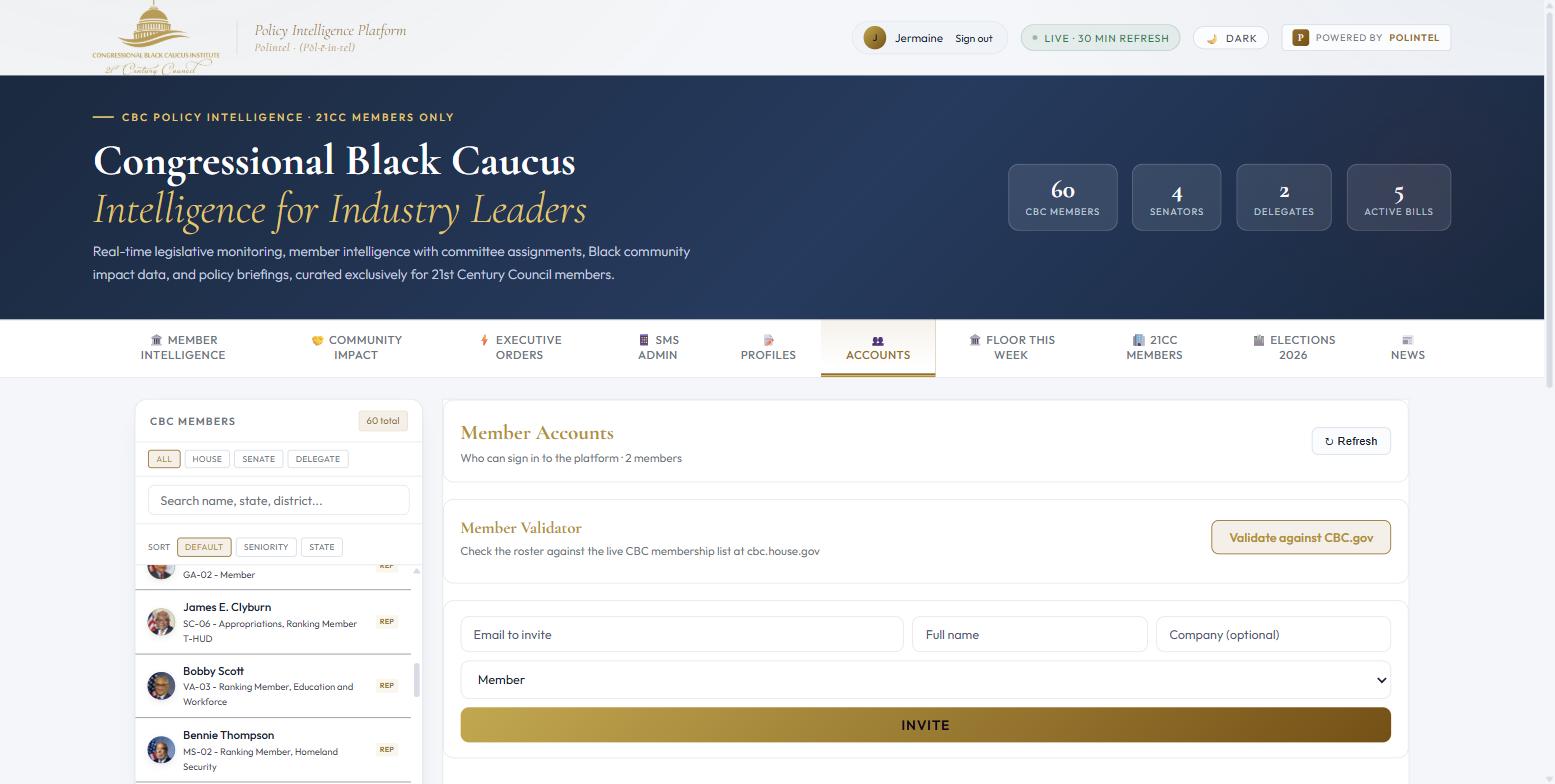
The Accounts tab is where you invite members, see who has signed up, remove access and read engagement metrics.
Inviting a member
- Open Accounts. Enter the member's email, full name and company. The company drives their personalized dashboard and lets you filter the roster later.
- Leave the role as Member. Choose Admin only for Polintel or CBCI staff who need the management tabs — admins can see every company's contacts and staff notes.
- Click Invite. The member receives an email to set their password and appears as invited; they become active when they finish.
Reading the metrics
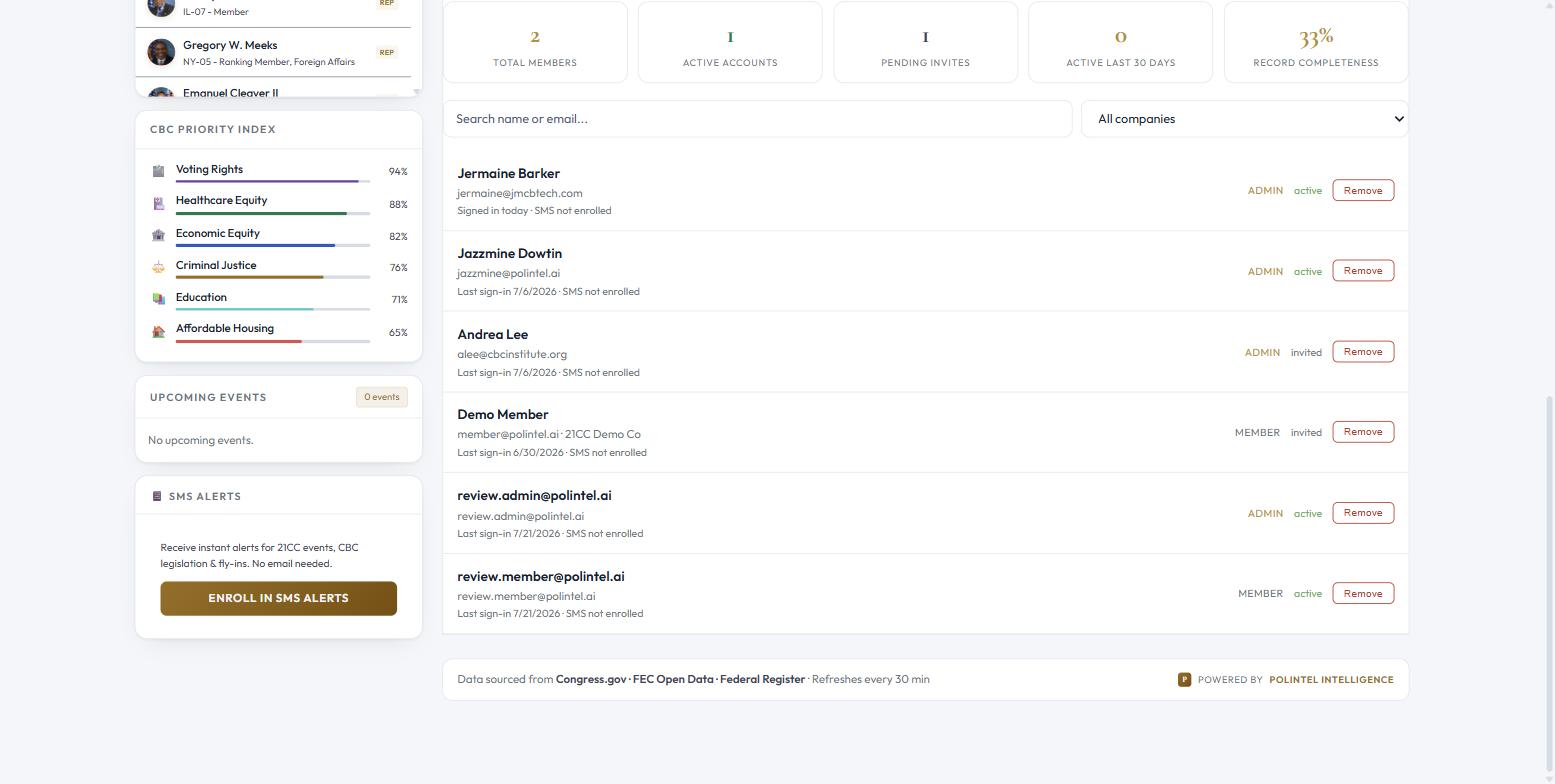
| Metric | Meaning |
|---|---|
| Total Members | All member-role accounts (administrators are not counted) |
| Active Accounts | Members who have completed sign-up |
| Pending Invites | Invited but not yet signed in |
| Active Last 30 Days | Members who signed in within the last thirty days (monthly active users) |
| Record Completeness | Share of name, company and SMS enrollment filled in across all member records |
Segmenting by company
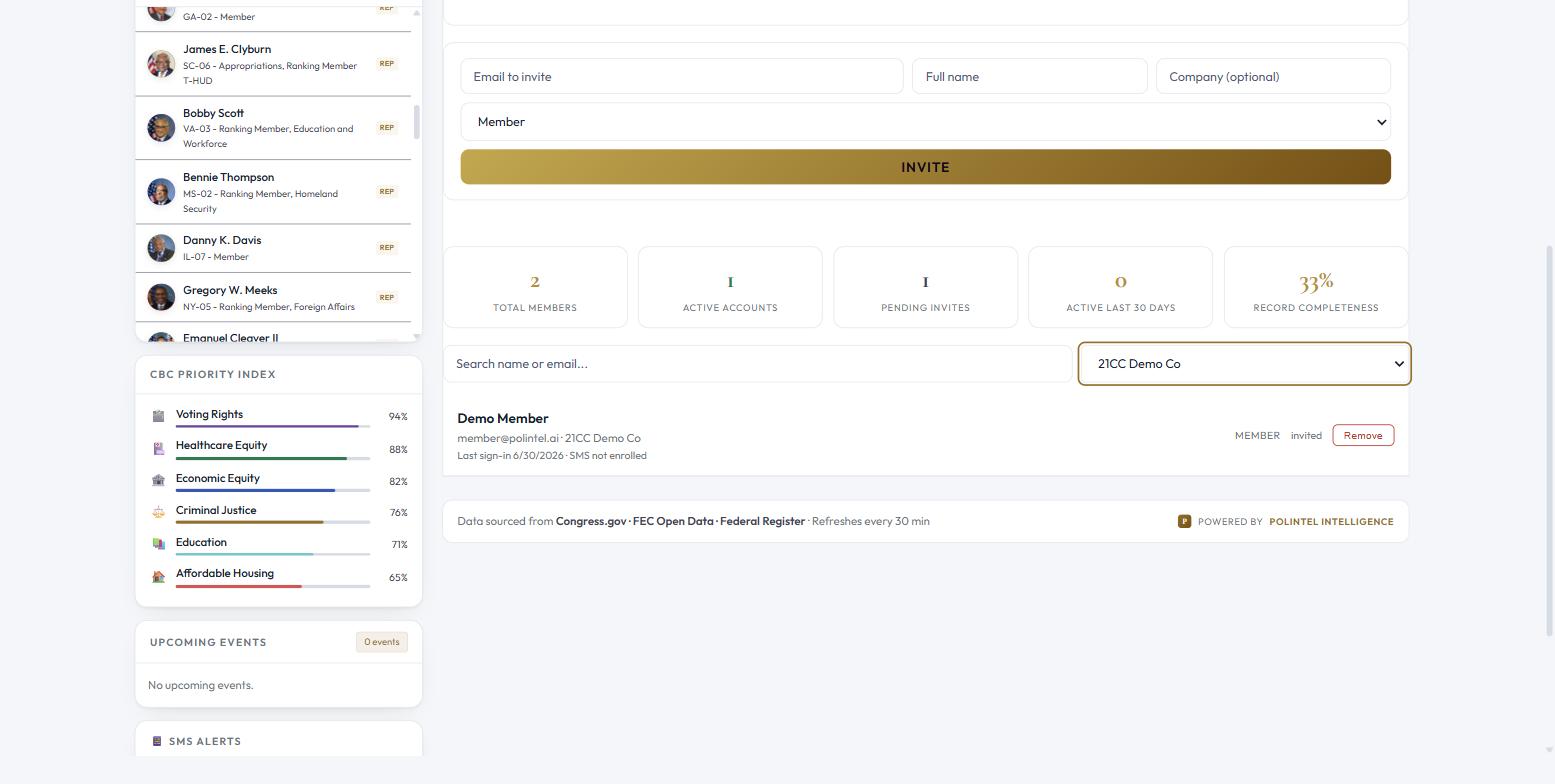
Use Search name or email or the All companies dropdown to view members from one organization. The dropdown is built from the companies on your roster.
Company one-pagers
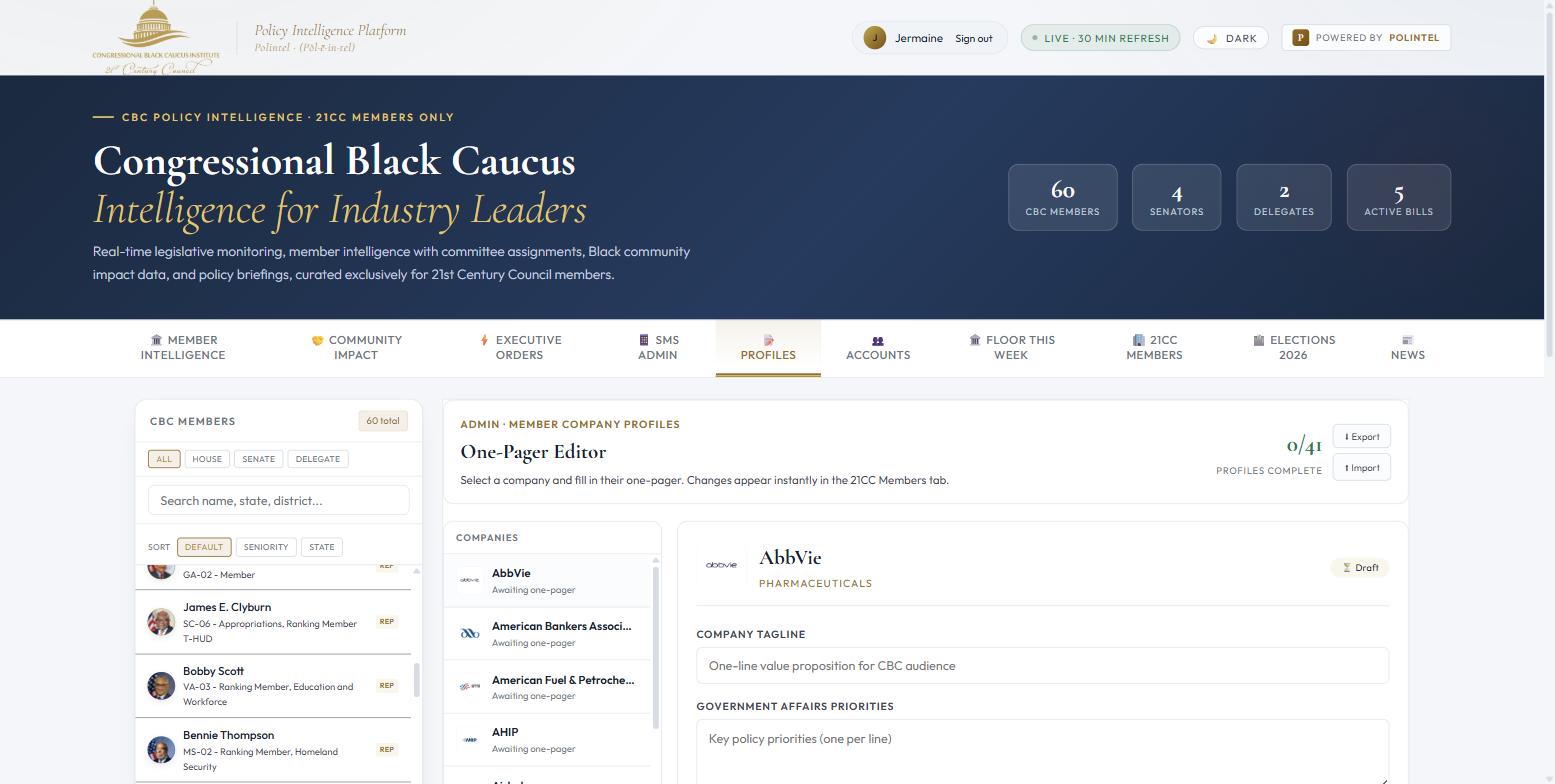
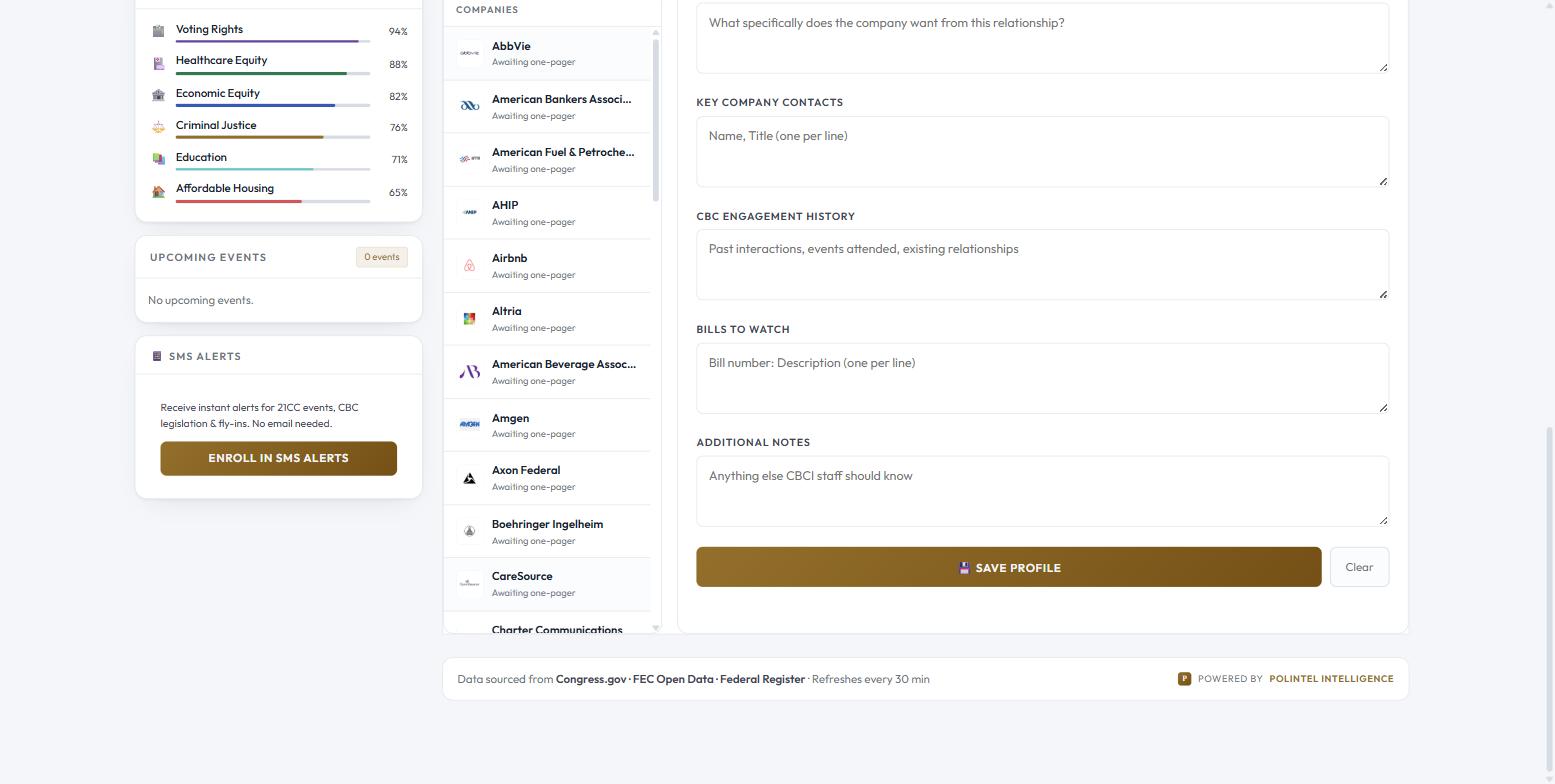
The Profiles tab is where CBCI staff enter each member company's one-pager. Public fields appear instantly on the company's directory page for every member; contacts and staff notes stay admin-only.
- Open Profiles. The Profiles Complete counter shows how many companies have a saved one-pager.
- Click a company in the list on the left.
- Fill in the fields. Key Company Contacts and CBCI Staff Notes are marked admins only and are never sent to member browsers.
- Click Save Profile. The status changes from Draft to complete and the directory updates.
Polintel Intelligence on a company page
When an administrator opens a company in 21CC Members, a blue Polintel Intelligence — Top CBC Targets panel shows the CBC members to prioritize for that company and a strategy note. Members do not see this panel.
Sending SMS alerts
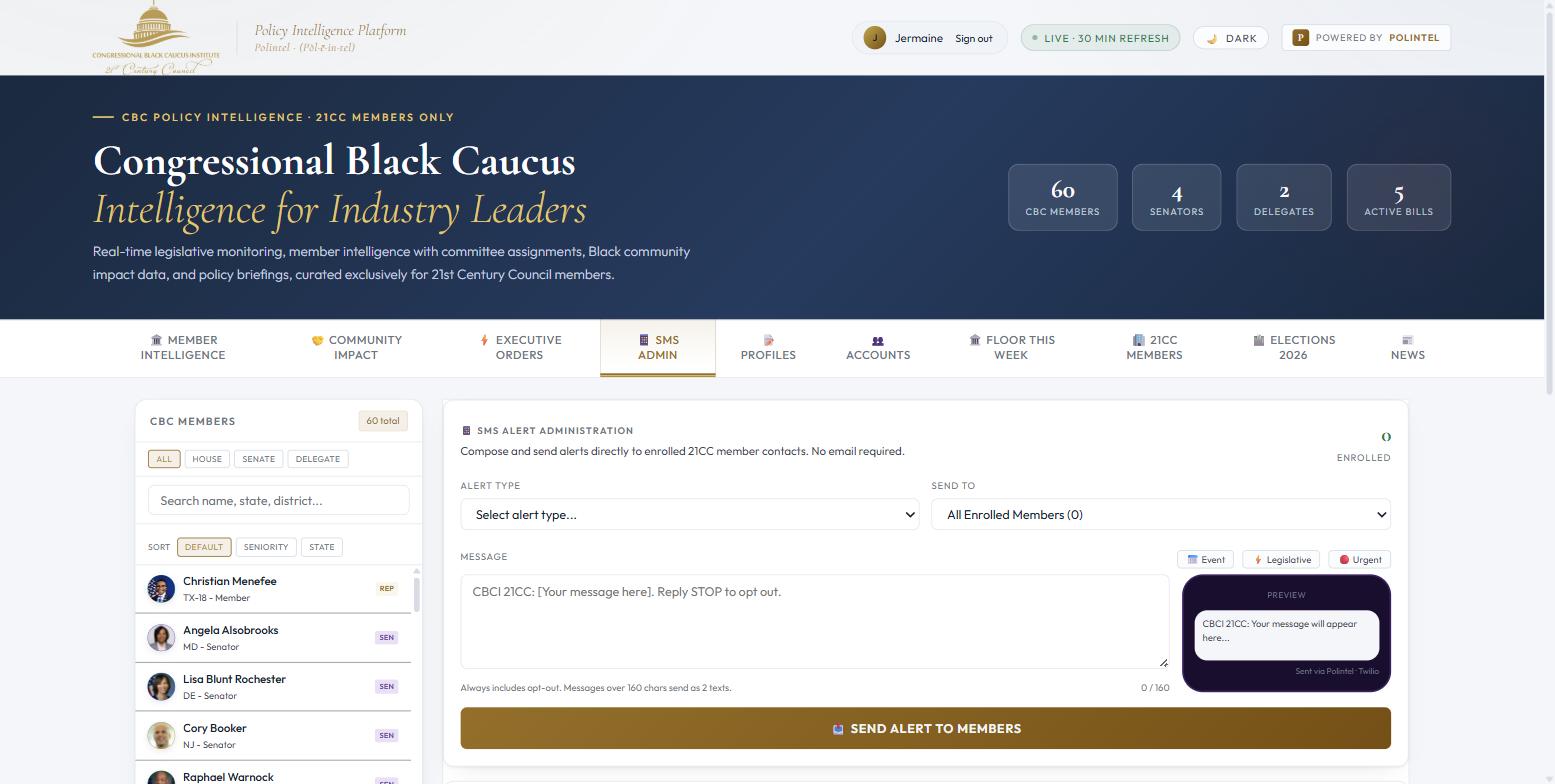
The SMS Admin tab sends texts to enrolled members through Polintel's verified messaging campaign.
- Open SMS Admin. The Enrolled counter shows how many members are opted in.
- Choose an Alert Type (event, legislative, urgent or custom) and an audience under Send To: all enrolled members, corporate members, or individual members. Counts next to each option are live.
- Write the message, or click Event, Legislative or Urgent for a template. The preview shows exactly what members will see. Messages over 160 characters send as two texts.
- Click Send Alert to Members. Delivery results appear in Alert History.
Enrolling a member manually
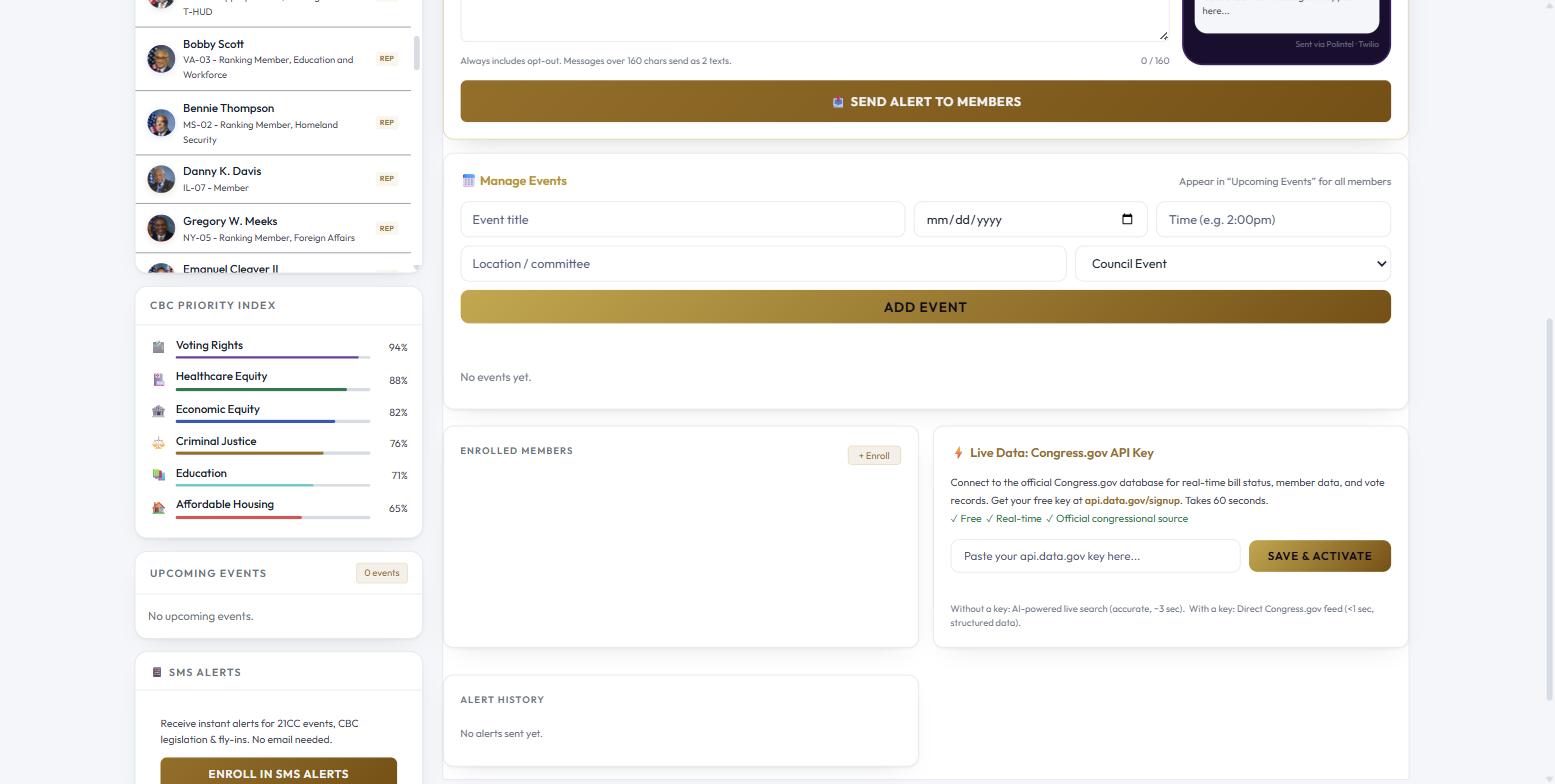
Under Enrolled Members, click + Enroll to add a contact who gave you their number directly. You must confirm that the member provided express written consent before the platform saves the record; the attestation is stored with the enrollment.
Events
- In SMS Admin, scroll to Manage Events.
- Enter the title, date, time, location or committee, and the event type.
- Click Add Event. It appears in every member's Upcoming Events card. To announce it by text, compose an Event alert above.
SMS compliance
How the platform keeps text messaging clean from day one.
| Requirement | How the platform handles it |
|---|---|
| Express written consent | Members must check a consent statement before enrolling. The exact statement, the time of consent and where it was given (member sign-up or administrator entry) are stored with the enrollment record. |
| Opt-out (STOP) | Every message includes "Reply STOP to opt out." STOP is honored at the carrier level and recorded by the platform, so the roster always reflects who has opted out. Opted-out members are excluded from every send. |
| Re-subscribe (START) and HELP | Handled automatically; each inbound keyword is logged with the sender's number and time. |
| Audit trail | Every outbound message is logged with recipient, content, delivery status and time. Every inbound message is logged separately. |
| Sender registration | Messages are sent through Polintel's verified messaging campaign so carriers do not filter them. |
Training videos
Narrated screen recordings of the steps above (MP4, with voice-over).
Training videos
Narrated screen recordings of the steps above (MP4, with voice-over). Videos 01–03 cover the member experience; 04–05 are administrator-only.
Getting help
Platform support is available to Polintel administrators by email and phone.
| Situation | What to do |
|---|---|
| You cannot sign in | Use Forgot password? on the sign-in screen. If your invitation link has expired, ask your administrator to re-invite you. |
| You stopped receiving text alerts | If you texted STOP, text START to re-subscribe. Otherwise contact your administrator. |
| Something looks wrong or is down | Administrators: email jermaine@jmcbtech.com with what you were doing, what you expected and what happened. For an outage, call 301-283-8535. |